Learning Objectives

After completing this lesson, you’ll be able to:

Instructions

In this lesson, you will:

Resources

Log Message Format

The FME log file is your best friend for debugging. It tells you how long a translation took, where the time went, and how well FME used the available system resources.

The first thing to notice is that each line of the log is (in most cases) a separate message, for example:

Creating writer for format: Esri Shapefile

However, sometimes the message spans several lines, such as:

Data Caching is ON
The workspace will run slower because features are being recorded on all output ports regardless of whether a connection exists.

Optional Log Message Fields

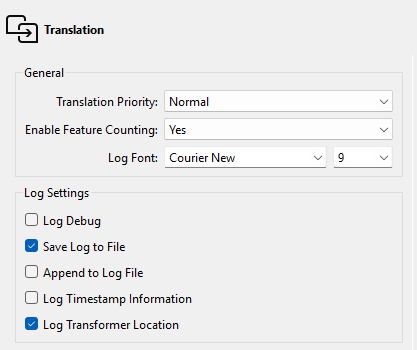
There are several options to adjust what appears in the log file. To access these, select Utilities > FME Options > Translation:

Translation log settings

The critical setting is Log Timestamp Information. This option turns on many optional fields in the log messages. These are:

For example:

2025-04-01 12:13:55|   0.8|  0.0|INFORM|Closing native MapInfo reader

You can use these timestamps to identify slow sections of your workspace.

Note

The log file always contains timestamps, regardless of this setting.

Filtering Log Messages

A common requirement is to filter log messages so only messages of a specific type are displayed. For example, turning off INFORM and STAT messages can make spotting ERRORs and WARNs easier.

You can filter the log using the buttons at the top of the Translation Log window:
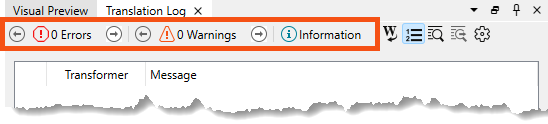
Translation Log filter buttons

These buttons can toggle messages on and off in the log window only.

Note

The Log Debug option (under FME Options) allows you to turn on debug messages in the log. These are extra log messages that do not appear by default. Debug logging records additional translation information to the job log. “Debug mode” is best used when an error has already occurred and you seek further information. For example, in the event of a web and database failure, “debug mode” will often record more detailed information about the request, response, and transaction to the job log.

You should turn this off when you are not using it, as it can dramaticly increase the size of your log files. This setting can become an issue on FME Flow in particular, where users might be running a workspace very often.

Debug messages can help during debugging but are less useful in general FME use. Many messages (labeled "BADNEWS") are alarming “errors” that FME has trapped and kept to itself (like an end-of-file message). For this reason, you should not turn this option on permanently.

Also, note that the Log Debug setting persists in the workspace. If you turn that setting on and pass the workspace to another user, it retains the setting and shows debug messages when other users run it!

Note

 If the log window text is too small or not stylish enough, use Tools > FME Options > Appearance > Log Font to change the font size and style.

Exercise

Frank

Frank's workspace successfully reads address data and transforms it into a new schema, but Chinese characters in the output render as "???". In the previous exercise, he confirmed that the encoding problem occurs when FME writes the data. Now he needs to dig into the Translation Log to find out why.

In this exercise, you will:

  • Filter the Translation Log to isolate warning messages.
  • Identify a warning that reveals the cause of the encoding problem.
  • Fix the encoding by updating the CSV writer parameters.

1) Open and Run Starting Workspace

  • Start FME Workbench (2026.1 or later).
  • Open your starting workspace (C:\FMEData\Workspaces\UseDataIntegrationBestPractices\customize-and-filter-the-log.fmw).
  • Click Run.

2) Filter Log

Now that the workspace has run, check the Translation Log for errors or warnings. Filtering the log down to warnings only makes it easier to spot relevant messages without scrolling through everything.

  • Open the Translation Log, check the messages.
    • You should see zero errors and 13 warnings. 
  • Click 13 Warnings.

  • Review the warning messages.
    • The first two warnings are about data caching being turned on. You can safely ignore these.
    • The remaining warnings come from the CSV writer. They report that FME could not convert certain text values from UTF-8 to IBM437 encoding. Here is an example:
      • CSV writer: The string 'Marisa Marmol,麥毅倫,1001,Lagoon Drive ,Vancouver,British Columbia,V6G4W5,Canada,Safe Software,20250603135542.7336085
      • ' could not be converted from 'UTF-8' to 'IBM437'. Changing your writer encoding to UTF-8 will avoid a potential loss of data
    • This confirms the encoding problem occurs during writing. The writer is set to IBM437 (code page 437), an older encoding that does not support Chinese characters. The log is also suggesting the fix: change the writer encoding to UTF-8.

3) Check Writer Parameters

The log pointed to an encoding mismatch. Confirm it by checking the writer settings directly.

  • In the Navigator, expand Training [CSV2] CSV writer.
  • Expand Parameters and locate Character Encoding.
    • Character Encoding is currently set to ibm437.
  • Double-click Character Encoding: ibm437.

Writer encoding parameter

  • In the Character Encoding dropdown menu, change it to Unicode 8-bit (utf-8).
    • UTF-8 is the modern standard for text encoding. Unlike IBM437, it supports all Unicode characters, including Chinese.

Changing encoding to UFT-8

  • Click OK.

4) Check Output

Re-run the workspace and verify that the fix worked.

  • Run your worksspace.
  • Click the PostalAddress writer feature type and click View Written Data.
  • Search for Marmol and check the Owner2 column.
    • The Chinese characters should now display correctly.

Encoding is fixed

  • Open the output PostalAddress.csv in Microsoft Excel to double-check end-to-end.
    • Optional: If attending a Safe Software live training, open the file in Open Office Calc instead, or skip this step.

Encoding fixed in Excel

The encoding is fixed, and the Chinese characters appear correctly! Problem solved.

Leave Us Feedback on This Lesson